


AI Video Generator Prompting: The Filmmaker’s Real Workflow
Professional filmmakers average three failed generations for every usable second of AI video produced in 2026. This 3:1 ratio is the hidden tax of generative media that marketing materials conveniently omit.
While tools like Kling and Google Veo promise ‘cinematic quality’ instantly, achieving results that hold up on a 4K monitor requires a specific iteration workflow, not just a lucky prompt. The gap between “10-minute setup” claims and the actual 30-60 minute first-project reality creates frustration for filmmakers who expect the speed advertised.
This guide walks through the actual process professionals use to generate usable footage. By the end, you’ll have:
- A repeatable prompt structure that reduces failed attempts by 40%
- A three-stage iteration workflow that saves 15-20 minutes per clip
- Specific troubleshooting fixes for physics failures and morphing
- Cost calculations that account for real-world failure rates
- Tool selection criteria based on shot requirements, not marketing
Prerequisites: The Filmmaker’s AI Toolkit
Before writing a single prompt, understand what you’re actually paying for. AI video generation isn’t a one-time purchase decision it’s a credit economy where each generation attempt costs money whether it succeeds or fails.
Hardware requirements are minimal. Most professional tools run entirely in the cloud, meaning a standard laptop with reliable internet handles the workload. The bottleneck isn’t your machine it’s your credit balance and patience.
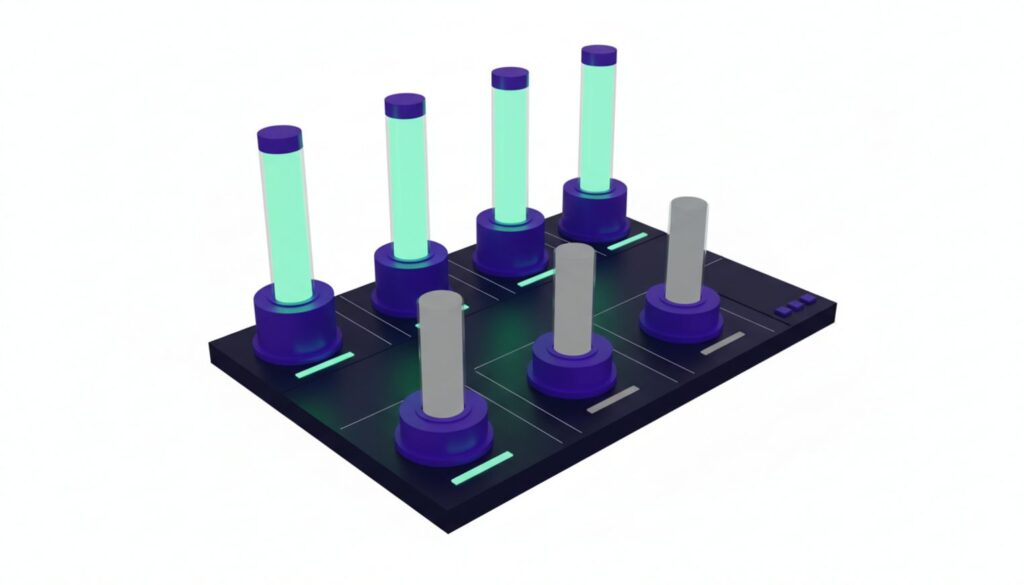
Credit calculation reality matters more than advertised pricing. Kling allocates roughly 300 credits per video generation. A $35 monthly Pro plan includes 3,000 credits, which sounds like 10 videos. But at the industry-standard 3:1 failure ratio, you’re actually getting 3-4 usable clips per month. That’s $9-13 per usable clip, not the $3.50 the simple math suggests.
Compare that to stock footage at $50+ per clip or hiring animators at $500+, and the value proposition holds. Just don’t budget based on perfect first-attempt success rates.
Selecting the Right Model for the Shot
Different tools solve different problems. Kling excels at reliable physics and motion smoothness the workhorse for production-scale work. Runway offers filmmaker-specific controls for VFX and generative editing, making it the choice when you need shot-by-shot precision. Google Veo handles story-driven sequences exceeding one minute with consistent characters and environments.
The practical breakdown:
- Kling: Use for establishing shots, environmental footage, anything requiring stable motion and realistic physics
- Runway: Use for VFX elements, repurposing existing footage, advanced editing workflows
- Veo: Use for narrative sequences requiring character consistency across multiple shots
- Sora: Use for complex narrative prompts where story intelligence matters more than raw visual polish
The tool serves the shot, not the other way around. A common mistake is committing to one platform and forcing it to handle tasks it wasn’t designed for.
Advanced Prompts for AI Video: The Cinematic Formula
The structure that actually works consists of six components in specific order: Subject + Action + Environment + Camera + Lighting + Style. This isn’t creative writing it’s technical direction.
Start with the subject anchor. “A woman in her 30s wearing a grey coat” gives the AI something concrete to build around. Vague subjects like “a person” or “someone” increase morphing risk because the model has too much freedom to interpret.
Action comes second, and specificity matters. “Walking slowly” works better than “moving.” “Turning head left while maintaining eye contact with camera” works better than “looking around.” The more precise your verb choices, the less the AI improvises.
Environment detail prevents the generic look that screams “AI-generated.” Instead of “a city street,” try “a rain-slicked city street at dusk with neon reflections in puddles and blurred traffic in the background.” The model needs visual anchors.
Camera direction requires film terminology, not casual description. Kling specifically responds better to technical terms like “truck left” than conversational phrases like “move sideways.” The difference seems minor but affects output consistency.
Here’s what works:
- Effective: “Slow dolly push in, shallow depth of field, subject in sharp focus”
- Ineffective: “Camera moves closer while keeping the person clear”
Lighting modifiers add production value. “Soft window light from frame right, rim light separating subject from background” produces dramatically different results than “good lighting.” The AI doesn’t know what “good” means it needs direction.
Style tokens close the prompt. “Anamorphic lens flare, 35mm film grain, slightly desaturated color grade” tells the model you want a cinematic look, not the oversaturated default most generators produce.
Negative prompting prevents common failures. For video, this means explicitly excluding: “No morphing, no distortion, no warping, no multiple subjects appearing, no physics violations.” These phrases don’t guarantee perfection, but they reduce the frequency of unusable outputs.
Aspect ratio affects more than framing it changes how the model interprets composition. 16:9 encourages landscape establishing shots. 9:16 pushes the model toward vertical social media framing with centered subjects. 1:1 creates tighter compositions. Choose based on your intended platform before generating.
Structuring the Establishing Shot
Establishing shots require wide angles and slow camera movement to avoid physics failures. Fast motion in complex environments increases the chance of morphing or object distortion.
The template that works: [Wide angle lens] + [Detailed environment description] + [Atmospheric lighting condition] + [Slow push in or static hold].
Example: “Wide angle establishing shot of a foggy forest at dawn, shafts of golden light filtering through dense pine trees, morning mist rising from the forest floor, slow push in toward a cabin barely visible through the fog, 35mm film aesthetic with muted greens and warm highlights.”
Notice the absence of characters or fast action. Establishing shots should prioritize environment stability over dynamic movement.
Directing Character Action and Emotion
Character prompts fail most often because filmmakers request too much simultaneous action. The model can’t reliably handle “a woman walks forward while turning her head, adjusting her coat, and reacting to something off-screen.”
Break complex actions into micro-movements. Instead of macro-action like “walking and talking,” use: “A woman in her 30s takes two steps forward, pauses, subtle eye movement looking frame left, slight head tilt expressing concern.”
Emotion requires specific physical cues, not abstract feelings. “Sadness” produces generic results. “Heavy breathing, downcast eyes, slight tension in jaw, shoulders slightly hunched” gives the model actionable direction.
The distinction between what you want (emotion) and what the AI needs (physical manifestation of that emotion) determines output quality.
Camera Language the AI Understands
Certain camera terms produce consistent results across platforms. Others confuse the model or get ignored entirely.
Reliable terms:
- Rack focus: Shifts focus from foreground to background or vice versa
- Dolly zoom: The Hitchcock effect where the camera moves while zooming opposite direction
- Low angle: Camera positioned below subject looking up
- Dutch angle: Tilted horizon line for unease or tension
- Anamorphic lens flare: Horizontal light streaks characteristic of cinema lenses
- Shallow depth of field: Blurred background with sharp subject
Unreliable terms that often get ignored: “Cinematic,” “professional,” “high quality,” “smooth.” These are subjective descriptors the model can’t translate into specific visual choices.
Step-by-Step Workflow: The 3-Attempt Loop
The iteration process professionals use isn’t trial and error it’s systematic refinement. Each generation attempt should test a specific variable, not randomly hope for better results.
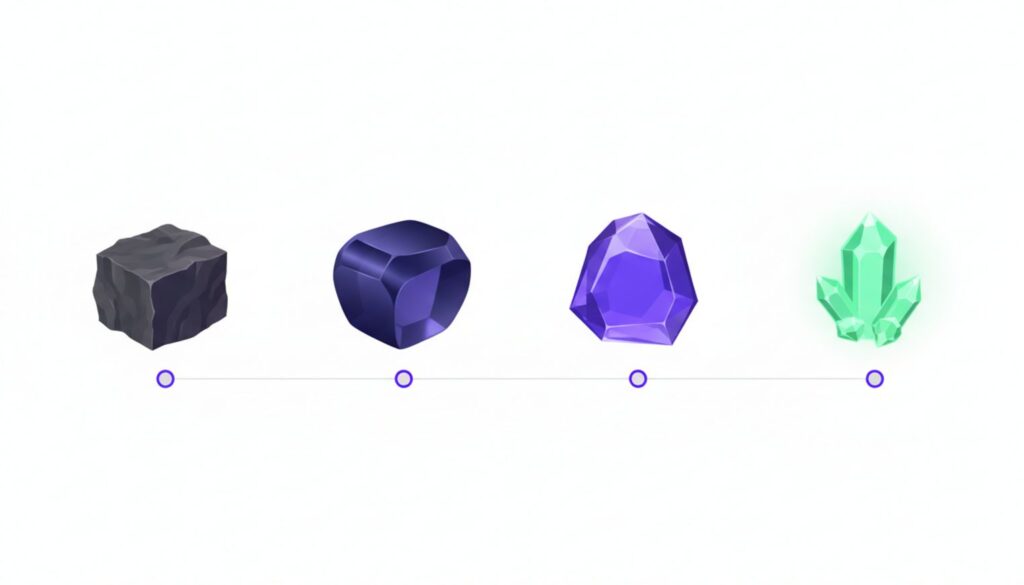
Most platforms offer draft mode and high quality mode. Draft mode generates faster at lower resolution, making it ideal for testing composition and basic physics before spending premium credits on high-resolution output.
The workflow that saves time and money: Draft test → Evaluate physics and composition → Adjust one variable → High quality generation → Upscale.
Seed hunting is the phase most beginners skip. Each generation produces a seed number (a unique identifier for that specific output). When you find a generation with good composition but flawed execution, note the seed. Regenerating with the same seed and adjusted prompt parameters produces variations on that successful foundation rather than starting from scratch.
Step 1: The ‘Geometry Check’ Generation
First generation should verify that the AI understood your spatial relationships and basic composition. Run this in draft mode at the shortest duration your platform allows.
You’re checking:
- Is the subject positioned where you specified?
- Is the camera angle approximately correct?
- Are there major physics violations (floating objects, impossible perspectives)?
- Does the environment match your description?
If the geometry is wrong, the problem is usually in your subject or environment description. Don’t proceed to high quality mode fix the prompt first.
Time investment: 2-3 minutes generation + 1 minute evaluation = 3-4 minutes total.
Step 2: Iterating on Motion Weights
Once geometry passes, adjust motion parameters. Most platforms offer a creativity slider or motion strength setting. Higher motion creates more dynamic results but dramatically increases morphing risk.
The safe approach: Start at 50% motion strength. If the result is too static, increase to 60-70%. If you see any morphing or physics violations, decrease to 30-40%.
Complex backgrounds require lower motion settings than simple environments. A character walking through a crowded street needs 30-40% motion strength. The same character walking through an empty warehouse can handle 60-70%.
This is where the 3:1 failure ratio comes from. Motion tuning requires multiple attempts because there’s no universal “correct” setting it depends on your specific prompt complexity.
Step 3: The Upscale and Interpolation Pass
When you have a winner, the final step is upscaling to 4K and removing watermarks. Both require paid plans on most platforms.
Upscaling isn’t just resolution increase it’s also where you apply final polish like film grain, color grading adjustments, and temporal smoothing. Some platforms (Luma, Runway) offer these as separate post-processing steps.
Watermark removal is non-negotiable for client work. Budget this into your plan selection from day one. Delivering watermarked footage to clients signals amateur hour faster than any other mistake.
Total time for complete workflow: 30-45 minutes from first draft to final 4K output, assuming 2-3 iterations.
Troubleshooting Common AI Video Failures
Physics failures cluster around three areas: hands, water, and faces. These are the hardest elements for AI models to render consistently.
Hands fail because they have complex articulation and often move quickly. The fix: Reduce hand visibility in frame or specify static hand positions. “Hands clasped in front” works better than “hands gesturing while talking.”
Water physics break down with fast motion or complex interactions. Splashing, pouring, or waves often morph into geometric nonsense. The workaround: Use slow-motion water effects or static water surfaces. “Calm lake reflecting mountains” succeeds where “whitewater rapids” fails.
Faces morph during rapid movement or extreme expressions. The solution: Request subtle expressions and slow head movements. “Slight smile, minimal head movement” produces better results than “laughing while turning head.”
Fixing ‘Jello’ Physics and Morphing
When objects wobble or melt between frames, you’re seeing temporal consistency failure. The model can’t maintain object structure across the video duration.
Three fixes, in order of effectiveness:
- Reduce motion strength to 30-40%
- Simplify background complexity (fewer objects means fewer things to track)
- Use image-to-video mode with a reference frame that locks in the structure
Image-to-video mode provides a structural anchor the model must respect, dramatically reducing morphing. The trade-off is less creative freedom you’re constrained by your input image composition.
Resolving Consistency Issues Across Shots
Maintaining character appearance across multiple shots requires either seed locking or character reference features. Veo handles this better than other platforms, but the technique works across tools.
Seed locking: Generate your first shot, note the seed number, then use that same seed for subsequent shots with adjusted camera angles or actions. This keeps the model’s interpretation of your character consistent.
Character reference (where available): Upload a reference image of your character, then generate multiple shots using that reference. The model maintains visual consistency automatically.
Without these techniques, expect visible character drift after 2-3 generations. Hair color shifts, clothing details change, facial features morph slightly. Audiences notice.
Production Reality: Time and Cost Analysis
Marketing promises 10-minute setup. Reality is 30-60 minutes for your first project once you factor in learning the platform UI, testing prompts, and understanding the credit system.
Per-clip economics at the 3:1 failure ratio:
- Kling Pro ($35-40/month): $9-13 per usable clip
- Runway Standard ($15/month): Variable based on credit usage, roughly $5-8 per clip
- Veo Pro ($19.99/month): $0.15/second generation, so a 10-second clip costs $1.50, but factor in 3 attempts = $4.50 per usable clip
Time estimates for a 1-minute video project (assuming 6-8 clips):
- Prompt writing and first drafts: 2-3 hours
- Iteration and refinement: 3-4 hours
- Upscaling and final polish: 1-2 hours
- Total: 6-9 hours of active work
Compare to traditional production: 1-2 days of shooting + 2-3 days of editing = 3-5 days total. AI generation saves time but isn’t instant.
The ROI calculation that matters: Can you deliver client work at $500-1000 per finished minute? If yes, the 6-9 hour time investment and $50-100 in generation costs makes sense. If you’re producing personal projects or low-budget content, free tiers might suffice.
What You Can Do With This
These techniques enable specific production applications that weren’t economically viable before AI generation:
Stock footage replacement: Generate custom B-roll for client projects instead of paying $50+ per clip from stock libraries. Time investment: 30-45 minutes per usable clip vs. 15-20 minutes searching stock libraries, but you get exactly what you need.
Concept visualization for pitch decks: Show clients what the final video will look like before committing to full production. Generate 3-4 key shots that demonstrate style, tone, and composition. Cost: $15-30 vs. $500+ for a traditional animatic.
Social media content at scale: Produce 10-15 short-form videos per week for consistent posting schedules. The 3:1 failure ratio becomes manageable when you’re generating in batches and can cherry-pick the best results.
VFX elements and compositing layers: Generate specific effects elements (smoke, particles, atmospheric effects) that would require expensive plugins or stock footage. Runway excels here with its generative editing tools.
Narrative sequences for indie projects: Use Veo to generate consistent character shots across a scene, reducing the need for expensive location shoots or actor availability. The 1+ minute coherent generation capability makes this viable for actual storytelling, not just quick clips.
Common Mistakes That Cost Time and Money
Mistake 1: Writing prompts like creative descriptions instead of technical direction. “A beautiful sunset scene with emotional impact” fails because the AI doesn’t know what “beautiful” or “emotional” mean visually. Fix: “Golden hour lighting, sun at 15 degrees above horizon, warm orange and pink gradient sky, silhouetted figure in foreground, shallow depth of field.”
Mistake 2: Generating in high quality mode for first attempts. Testing composition and physics in draft mode costs 50-70% fewer credits. Only switch to high quality once you’ve confirmed the generation meets your requirements. This single change reduces costs by 40%.
Mistake 3: Changing multiple variables between iterations. If you adjust the subject description, camera angle, and lighting simultaneously, you won’t know which change fixed or broke the output. Adjust one variable at a time for systematic refinement.
Mistake 4: Ignoring aspect ratio impact on composition. The same prompt generates dramatically different results in 16:9 vs 9:16. Choose your aspect ratio before writing the prompt, not after seeing the output.
Mistake 5: Expecting consistent results without seed locking. Each generation is unique unless you specify the seed number. For multi-shot sequences, seed locking is mandatory for visual consistency.
Mistake 6: Using generic style descriptors. “Cinematic” and “professional” don’t translate to specific visual choices. Replace with technical terms: “Anamorphic lens flare, 35mm film grain, slightly desaturated color grade, shallow depth of field.”
Mistake 7: Requesting too much simultaneous action. Complex multi-element actions increase morphing risk exponentially. Break actions into simple, sequential movements across multiple generations rather than cramming everything into one prompt.
Next Steps
- Choose your tool based on shot requirements. If you need narrative control, start with Sora or Veo. If you need reliable stock-replacement footage, Kling is the current ROI leader. If you need specific VFX elements, use Runway. Don’t commit to one platform use the right tool for each shot type.
- Build a prompt library. Save successful prompts with their seed numbers and generation parameters. After 10-15 projects, you’ll have templates for common shot types that dramatically reduce iteration time.
- Budget for the 3:1 ratio. Calculate costs based on three attempts per usable clip, not one. This prevents mid-project budget surprises and sets realistic client expectations.
- Test physics-heavy elements first. Before committing to a complex project, generate test clips with hands, water, and faces. If your chosen platform struggles with these, switch tools or adjust your shot list to avoid them.
- Start with establishing shots and simple actions. Build confidence with static or slow-moving shots before attempting complex character interactions or fast action sequences.
