The AI Inbox Triage That Gives Owner-Operators 5 Hours Back a Week (2026)
The AI Inbox Triage That Gives Owner-Operators 5 Hours Back a Week (2026)
You spend most of Monday morning sorting email, and by Wednesday the inbox is a fresh pile of "where do I even start." The fix is not a new email app. It is a small AI agent that reads each new message, decides what it is (lead, invoice, support, newsletter, junk), and either labels it, drafts a reply, or sends a short acknowledgement. Operators running this triage in n8n report reclaiming four to six hours a week, mostly by no longer re-reading the same email five times.
TL;DR
Gmail Trigger watches every new inbox message.
An AI Agent node classifies it into a fixed set of labels.
IF and Switch nodes route by label to the right action.
Drafts get prepared in Gmail, never auto-sent on risky categories.
Honest tradeoffs: keep legal, refunds, and executive escalations manual.
What is AI inbox triage and why do owner-operators need it now?
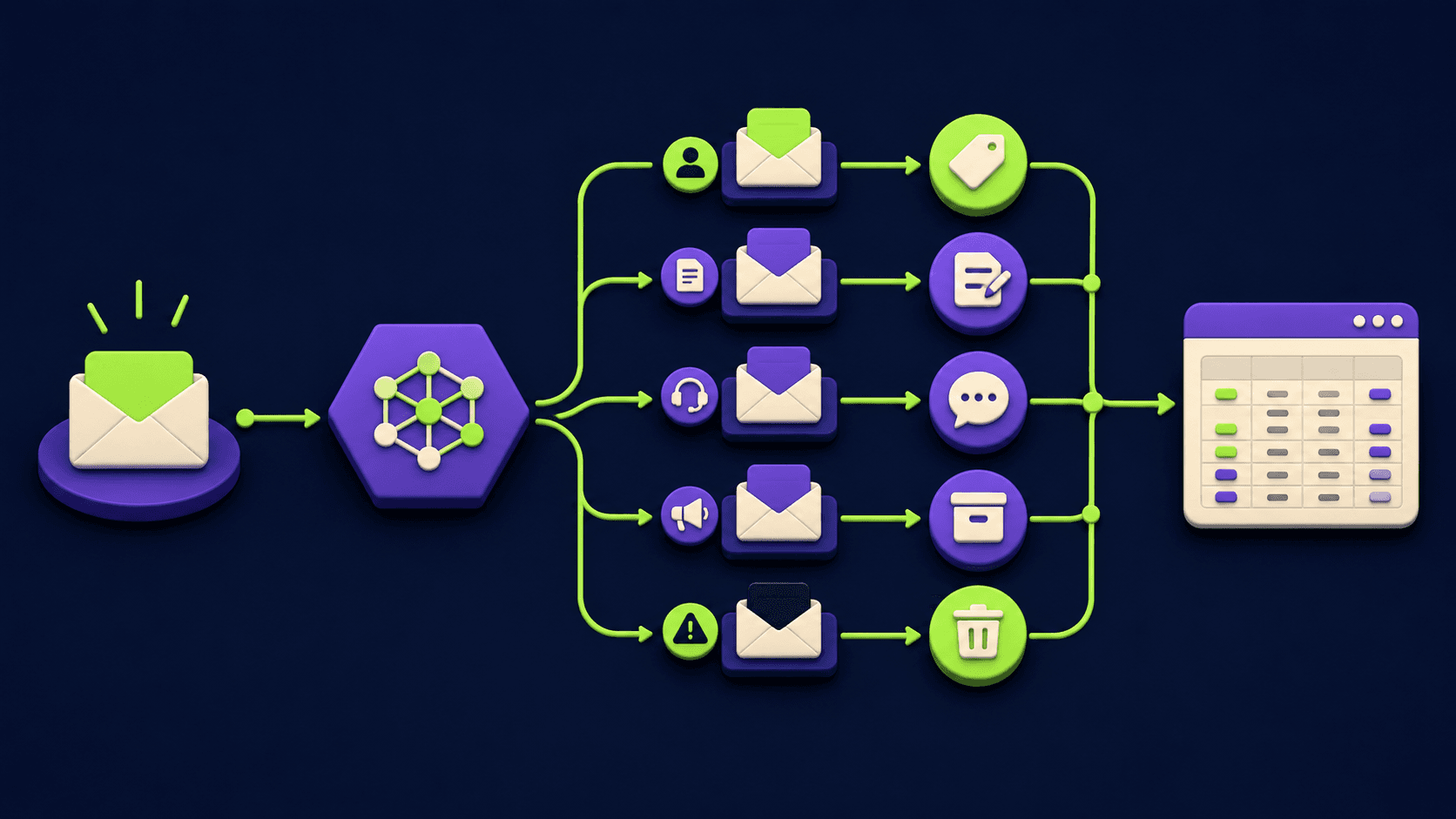
AI inbox triage is a small automation that reads each incoming email, tags it by what it is and what it needs, then either files it, drafts a reply, or sends a short auto-acknowledgement. For an owner-operator the value is not "AI answers my mail." The value is that the next time you open Gmail, the noise is already sorted and the only thing waiting on you is the email a human actually has to handle.
Per the Radicati 2024 to 2028 Email Statistics Report, business users averaged 121 emails received per workday in 2024 and the projection rises year over year. The people running service businesses, agencies, and small ecommerce shops are still the bottleneck on every reply. A model that classifies once at the door costs cents and saves the same email from being scanned and re-scanned all week.
How much time does an AI inbox triage actually save a small business owner?
In our builds at Vantaige, owner-operators report saving four to six hours a week once the agent is tuned to their categories, with the biggest savings on Mondays and after vacation. The wins come from three places: not reading newsletters and vendor blasts at all, replying to repeat questions from a draft instead of a blank page, and never losing a lead in the noise. None of those are heroic AI feats; they are small wins that compound across a hundred messages.
The math is mundane. A McKinsey Global Institute study put time spent on email at roughly 28 percent of the workweek, and sorting and re-reading is the biggest slice. Move sorting off the human and the workweek shrinks before any reply is written. The four-to-six-hour range is what we see in builds; honest range is wider depending on inbox volume and how aggressive the auto-reply rules are.
What does the n8n architecture look like end to end?
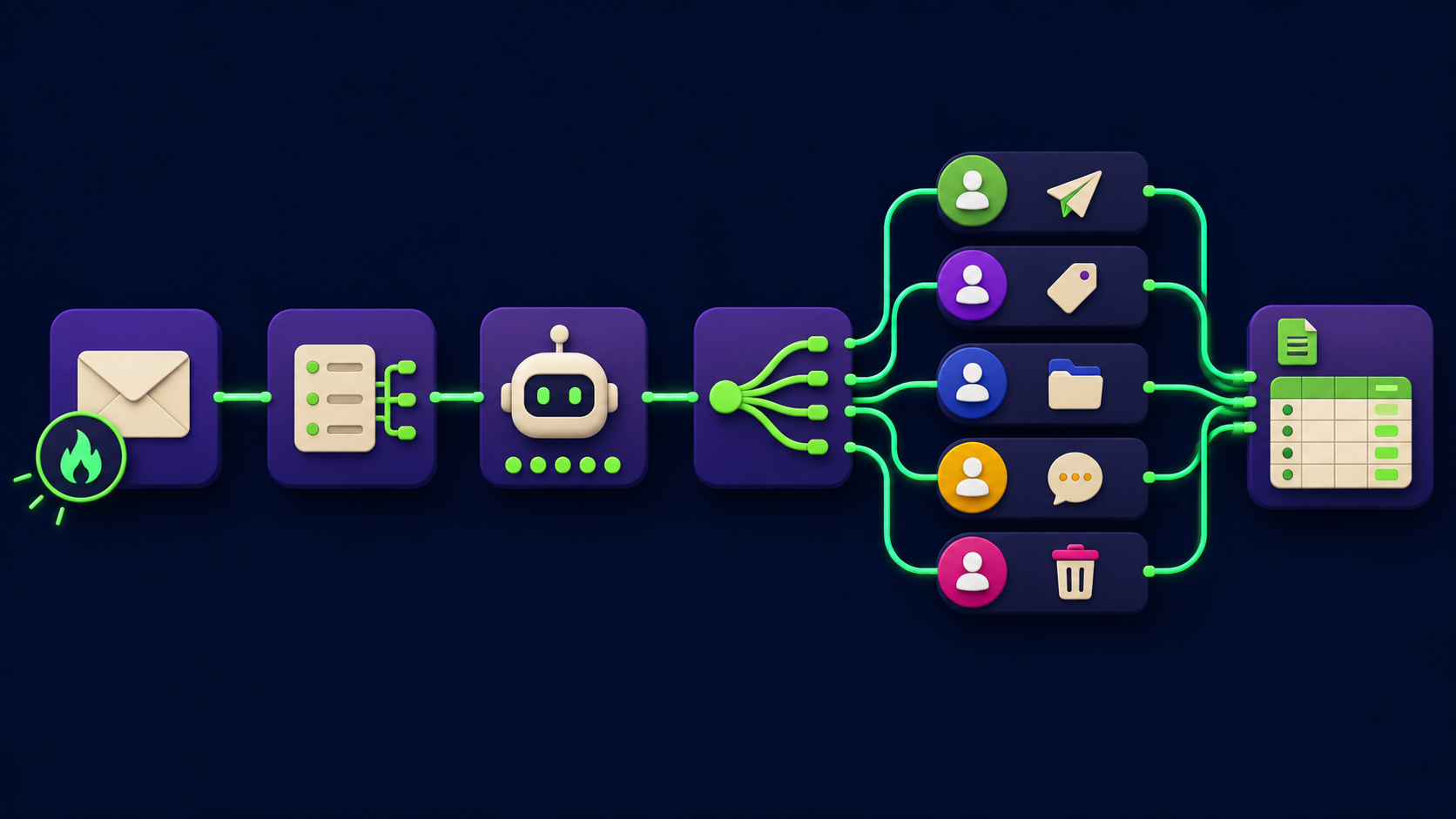
The pipeline is six logical steps in n8n: a Gmail Trigger fires on every new message, a Set node normalizes the fields, an AI Agent node classifies the email into a fixed label, a Switch (or IF) node routes by label, and Gmail nodes perform the action (add a label, create a draft, or send a short reply). A log step writes one row per email to Google Sheets or Airtable for a weekly audit. The whole thing is one workflow file and runs in the background.
Step | Trigger or node | What it does | Who sees it |
|---|---|---|---|
1 | Gmail Trigger | Fires once per new inbox message, returns subject, from, snippet, body, threadId, messageId | Owner never sees this |
2 | Set node | Picks just the fields the agent needs: from, subject, plainBody, and a 600-character snippet | Owner never sees this |
3 | AI Agent (Anthropic or OpenAI chat model) | Reads the email and returns a single JSON label from a fixed list: lead, support, invoice, vendor-pitch, newsletter, internal, escalation, spam | Owner sees the label on the message |
4 | Switch node | Sends the email down a different branch based on the label | Owner never sees this |
5a | Gmail node (add label) | Adds the label so the inbox is visually sorted and the message can be filtered | Owner sees the label in Gmail |
5b | Gmail node (create draft) | For lead and support: drafts a reply using a per-category prompt, leaves it in Drafts for owner review | Owner opens the draft, edits, hits Send |
5c | Gmail node (reply) | For newsletters and vendor pitches: sends nothing, just archives. For confirmed support FAQ matches: sends a short acknowledgement only | Owner sees the auto-acknowledgement in Sent |
6 | Google Sheets or Airtable | Logs from, subject, label, action taken, draft preview link | Owner reviews weekly |
Two things to notice about the shape. Classification is one model call, not a chain, which keeps cost in cents per hundred emails. And the agent never sends a stranger anything risky. Everything that could damage a relationship lands in Drafts for human review. The full Gmail Trigger node options live in the n8n Gmail credentials docs, and the AI Agent node patterns are in the official AI Agent node reference.
The linear node order, with exact n8n node names in execution order, looks like this. You can wire this in 20 to 40 minutes if you are familiar with n8n.
1. Gmail Trigger           (Watch For: Message Received, Poll: every 1 minute)
2. Set                     (output: from, subject, snippet, threadId, messageId, body)
3. AI Agent                (chat model: Claude or GPT, output: strict JSON label)
4. Switch                  (rules: one branch per label value)
   a. lead          -> Gmail (create draft) -> Sheets (log)
   b. support       -> Gmail (create draft) -> Gmail (send short ack if FAQ match) -> Sheets
   c. invoice       -> Gmail (add label "Invoices") -> Gmail (forward to bookkeeper) -> Sheets
   d. vendor-pitch  -> Gmail (add label "Vendor Pitch") -> Gmail (archive) -> Sheets
   e. newsletter    -> Gmail (add label "Newsletters") -> Gmail (archive) -> Sheets
   f. internal      -> Gmail (add label "Internal") -> Sheets
   g. escalation    -> Gmail (add label "URGENT") -> Slack or SMS notify -> Sheets
   h. spam          -> Gmail (add label "AI Spam") -> Gmail (archive) -> Sheets
Two configuration details matter. The Gmail Trigger Poll setting should be 1 minute for an active business inbox, 5 minutes for low volume. And the Switch node should use the "Rules" mode with one rule per label so adding a new category later is a single rule, not a refactor.
How does the AI Agent classify emails reliably?
The agent works because it has three constraints: a small fixed label list, a system prompt that includes one sentence describing the business, and a strict instruction to return a single JSON object with the chosen label and a one-sentence reason. Open-ended classification fails. Constrained classification with a finite list and a forced JSON output succeeds the vast majority of the time on common inbox traffic.
The system prompt is short on purpose. It names the business in one line ("a residential plumbing company in Austin, Texas, owner-operator runs the inbox"), lists the eight labels with one-line definitions, and ends with "respond with one JSON object containing label, confidence, and one-sentence reason." The user prompt passes the email subject, sender, and the first 600 characters of the body. The model returns: {"label": "lead", "confidence": 0.92, "reason": "Sender is asking for a quote on a new install in Round Rock"}.
Confidence is the safety valve. Anything under 0.7 routes to a "needs review" label and skips drafting entirely, which prevents the model from confidently drafting a wrong reply on an edge case. Per the Anthropic prompt engineering guide on structured outputs, returning a strict JSON schema and validating it in the next node is the cheapest way to make a classification step production-reliable.
What categories should the agent actually use for a small business inbox?
Eight labels cover almost any owner-operator inbox without overlap: lead, support, invoice, vendor-pitch, newsletter, internal, escalation, spam. Fewer and routing becomes useless. More and the model burns tokens on edge cases that fire once a week. Eight fits in a system prompt and gives the Switch node clean branches.
lead: a new prospect asking about your service, pricing, or availability. Routes to draft a personalized reply.
support: an existing customer asking a question. Routes to draft a reply, and if the question matches a known FAQ, also sends a short "I got your message, here is the quick answer, more soon" acknowledgement.
invoice: a vendor invoice or payment notification. Routes to add a label and forward to your bookkeeper or accounting inbox.
vendor-pitch: cold outreach from a software, agency, or service vendor. Routes to add a label and archive. No reply.
newsletter: a subscribed mailing list, transactional notification, or content update. Routes to add a label and archive. No reply.
internal: an email from your team, a contractor, or a known partner. Routes to add a label and surface in the inbox, no draft, because internal context matters.
escalation: anything that smells urgent, legal, refund-related, executive, or angry. Routes to add a red label and ping you on Slack or SMS. No draft, no auto-reply, ever.
spam: obvious spam that slipped Gmail's filter. Routes to add a spam label and archive.
The "escalation" label is the most important and the least obvious. Adding example phrases to the system prompt ("refund," "lawyer," "complaint," "BBB," "chargeback") prevents the agent from cheerfully drafting a polite reply to a message that needs your real attention in the next ten minutes.
How do you draft replies that sound like you and not like AI?
The draft step uses a second small prompt per label with two inputs: the original email, and a short paragraph of your voice samples (three or four real replies you have sent in the past, pasted in as examples). The agent then writes a draft matching your sentence length, greeting style, sign-off, and vocabulary. The draft lands in Gmail's Drafts folder where you read it, edit one line, and hit Send.
The prompt looks like: "Here is how I usually reply to leads (three pasted examples). Here is the new lead email. Write a reply in the same voice, 3 to 5 sentences, end with my standard sign-off." Operators we have built for report editing roughly one line in three drafts and leaving the rest as-is. Per the Anthropic multi-shot prompting documentation, three to five concrete examples close the gap between generic AI text and on-brand text faster than any system-prompt instruction.
Three guardrails keep lead drafts safe even when the agent is wrong. First, the confidence threshold from classification: anything under 0.7 skips drafting and just gets a "Review" label. Second, the draft prompt is forbidden from quoting prices, dates, or availability the model does not have ("never quote a price, never commit to a date, never promise turnaround time"). Third, every first-contact lead is a draft, never a send. The owner reads and sends. Together these cut bad drafts to almost zero in practice.
What categories should you NOT auto-handle, and why?
Three categories should never get an automated reply, an automated draft sent without review, or aggressive auto-archiving: legal threats, refund and chargeback disputes, and executive or partner escalations. The cost of getting one of these wrong is large and direct. The cost of getting one right by hand is two extra minutes. The math is obvious.
Legal threats and demand letters: any email mentioning lawsuit, attorney, lawyer, demand, cease and desist, BBB complaint, regulator, or formal complaint. The agent labels and notifies. You handle.
Refunds and chargebacks: a refund request is an emotional conversation with money on the line. An auto-draft that sounds dismissive can turn a refund into a chargeback into a review. The agent labels and drafts a "needs human review" placeholder. You write the actual reply.
Executive escalations and partner emails: messages from named partners, large clients, your accountant, your attorney, and anyone you have a personal relationship with. These get an Internal label and surface at the top of the inbox, no draft attempted. The relationship is the asset; voice-mimicking AI is not worth the risk.
The pattern across all three: the cost of a bad automated reply is asymmetric. You save 30 seconds when it works and lose hours, money, or a relationship when it does not. "Label and notify, no draft, no send" keeps speed wins on the routine 90 percent and keeps the high-stakes 10 percent where it belongs, on you.
How long does it take to set this up, and what does it cost to run?
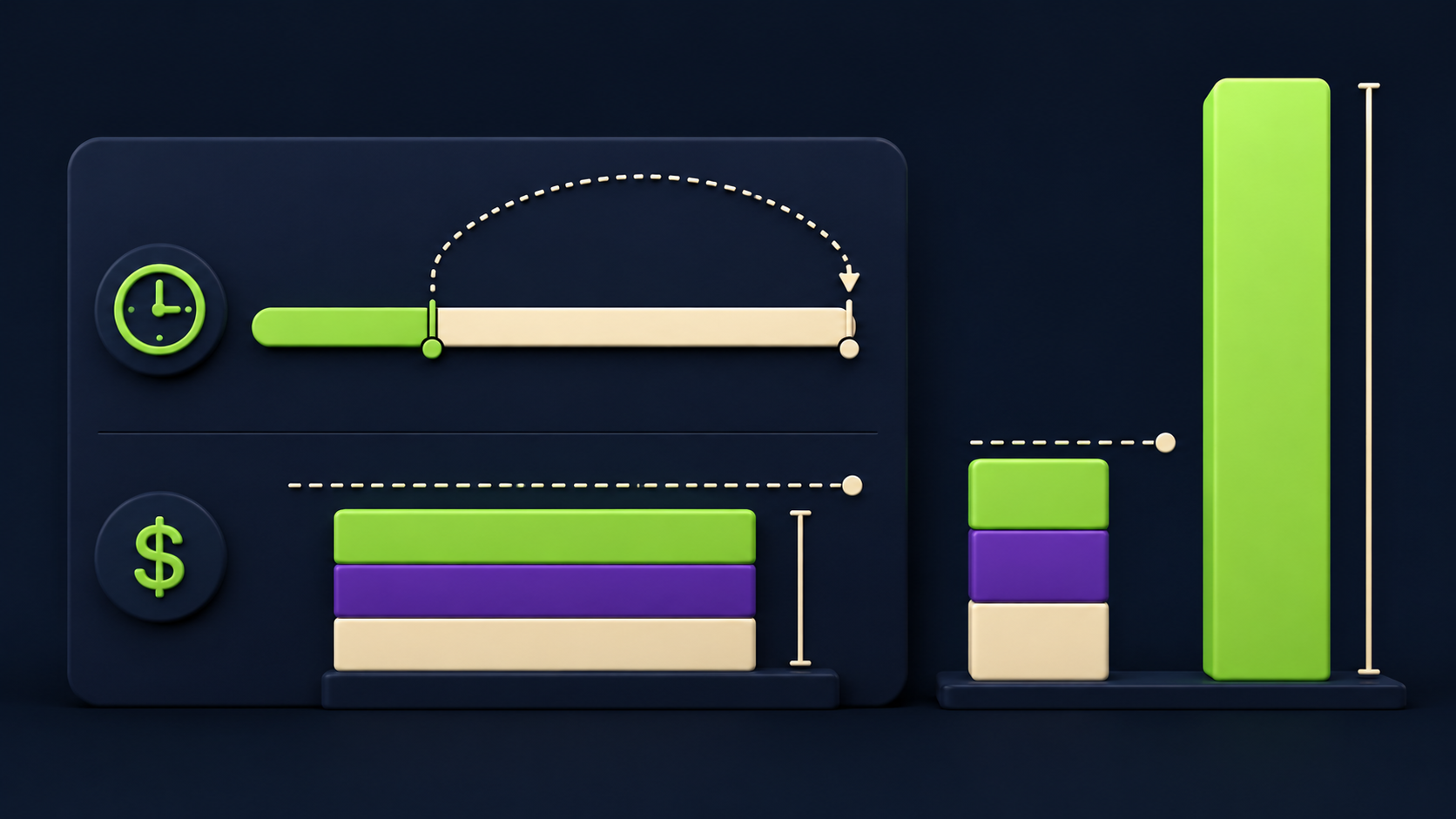
A first build takes a focused weekend for someone comfortable with n8n: roughly 3 to 6 hours of building plus a week of light tuning. Total operating cost stays under $40 per month for almost every small business inbox: $1.50 to $12 in model API spend (Claude Haiku or GPT-4o-mini for classification), $6 to $20 in n8n hosting (self-hosted VPS or n8n Cloud Starter), and $0 for Sheets logging and Slack notifications on free tiers. A single hour of an owner-operator's time at any reasonable rate covers a year of model spend.
Line item | Typical monthly cost | Notes |
|---|---|---|
Model API (classification + draft) | $1.50 to $12 | Haiku or 4o-mini for classification, larger model for drafts if voice matters |
n8n hosting | $6 to $20 | Self-host on a small VPS, or use n8n Cloud Starter at $20 per month |
Sheets or Airtable logging | $0 | Free tier handles thousands of rows |
Slack or SMS escalation alerts | $0 | Free Slack tier or Twilio at fractions of a cent per message |
The fastest path. Day one is wiring nodes with classification only: every email gets labeled, nothing gets drafted, nothing gets sent. Spend a week watching how labels behave on real traffic. Then enable drafting for the support category (lowest-risk: existing customers, predictable questions). Then enable drafting for leads. Then enable auto-archive for vendor-pitch and newsletter. Each promotion to "automatic" is informed by a week of evidence, not optimism.
If you want a template to study before building, the 15 AI agent n8n workflows to build in a weekend roundup covers the build pattern across several adjacent agents, and the orchestrator-worker n8n template is what you graduate to when one agent grows into a multi-agent suite for your inbox plus calendar plus CRM.
What is the maintenance load once it is running?
Maintenance is roughly 15 to 30 minutes a week once the system is stable, mostly spent reviewing the Sheets log and updating the system prompt for new edge cases. The two things that break in practice are OAuth tokens (Gmail credentials expire and need to be re-authenticated) and label drift (your business changes and a new category emerges that was not in the original eight). Both are fixable in minutes if you notice them.
The five-minute weekly habit that prevents most problems. Open the Sheets log, sort by label, scan for anything weird. If a label has zero rows for a week, the agent has stopped using it (your prompt drifted). If a category jumps from 5 to 30 percent of mail, your inbox has changed (new product, new season) and the prompt needs a one-line update. Most owner-operators we have built for spend under half an hour a month on maintenance once the first month of tuning is done.
Would rather have this built for you?
If reading the architecture above sounds clear but building it sounds like the kind of weekend you are not going to spend, Vantaige builds inbox triage workflows for small businesses as a fixed-scope engagement. We wire the eight-label classifier to your real categories, train the draft step on your actual replies, and hand over the n8n workflow as a file you own. Get in touch via vantaige.io/contact if you want a scoped quote.
Frequently asked questions
Will Gmail block or rate-limit this kind of automation?
Gmail's API has generous limits for personal and Workspace accounts when accessed through approved OAuth applications. n8n connects via standard OAuth and stays well under the per-user quota for any realistic inbox volume. The relevant ceiling is roughly one billion quota units per day per project (Google's own number), and a single inbox burns a tiny fraction of that. Watch out instead for sending limits if you enable auto-replies aggressively, since Workspace caps outbound sending at 2,000 messages per day per account. Owner-operator inboxes do not come close.
Can the agent learn my voice over time, or does it need re-prompting?
The agent does not learn in the machine-learning sense between calls; it reuses the same system prompt every time. The way "learning" actually happens is that you swap better example replies into the voice-samples paragraph every few weeks. Three or four real sent emails as examples covers most of the voice gap. If you sell a new product or change your tone meaningfully, refresh the examples. Some operators automate this by pulling the most recent five replies from Sent every Monday into the prompt.
What happens if the AI Agent node fails or the model API is down?
n8n's error handling lets you wire a fallback branch off any node. The pattern: on AI Agent error, route the email straight to a "Needs Review" Gmail label and continue. The email never disappears, it just lands unsorted and waits for you. See the n8n docs on error-handling flow patterns. Even a multi-hour model outage just means a few hundred emails sit in "Needs Review" until the next successful run.
Do I need n8n self-hosted, or is n8n Cloud fine?
Both work. n8n Cloud Starter at $20 per month is the right call if you do not want to run a server. Self-hosted on a $6 to $12 VPS gives you full control over credentials, lower cost at scale, and the ability to point at multiple inboxes (yours plus team members') from one instance. For a single owner-operator inbox with under 200 emails per day, n8n Cloud is the lower-stress choice. For an agency wiring this up for several client inboxes at once, self-hosted wins on cost and flexibility.
How do I measure whether it is actually saving me time?
Two numbers from the Sheets log, tracked weekly, settle the question. Count of emails labeled and acted on automatically (target: 60 to 80 percent of total inbox volume within the first month), and count of drafts you accepted with no edits (target: 30 to 50 percent of drafts after voice tuning). If both numbers are climbing month over month, the agent is doing the work. If either flatlines below the target, the system prompt or voice samples need a refresh.
Is this the same as an autoresponder?
No. An autoresponder sends the same canned reply to every message that matches a filter. An AI triage agent reads the email, decides what it is, and chooses an action. The two coexist well, an autoresponder for "out of office this week" and an AI triage agent for everything else, but they solve different problems. The triage agent is closer to "a smart assistant pre-sorting your mail" than to "an autoreply rule."
Related from Vantaige
References
Get the best new AI tools and guides, weekly
One short email a week. The tools worth trying, the guides worth reading, nothing else.
No spam. Unsubscribe anytime.
Aymen B
Contributing writer at Vantaige, covering the AI tools ecosystem.