Run Your First Local Language Model with Ollama or LM Studio
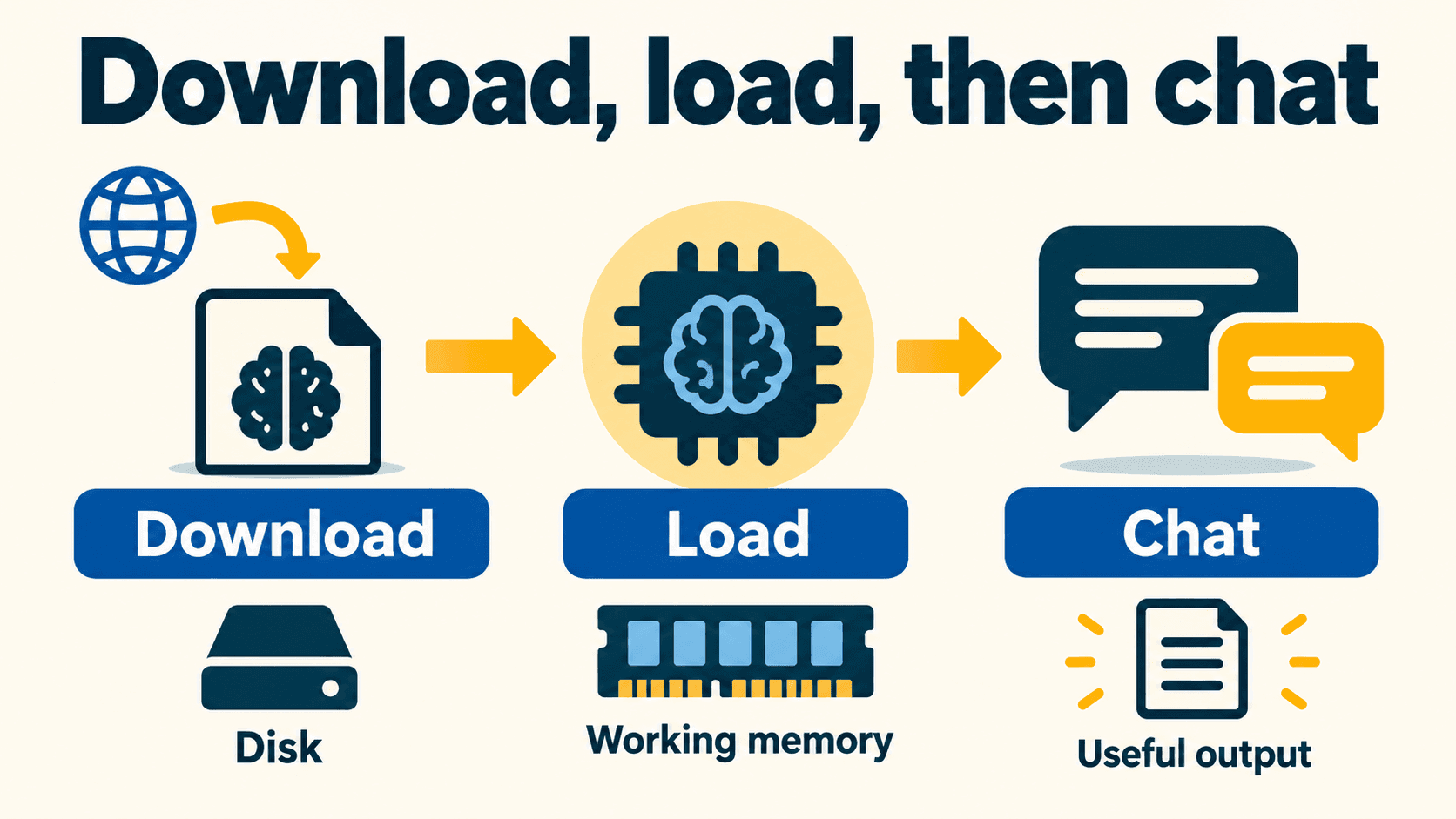
To run a first local language model, install one runtime, download a small supported chat model, and try a short prompt with an answer you can check. Choose Ollama if you want a terminal workflow; choose LM Studio if you prefer browsing, loading, and chatting through a desktop interface.
A local model can generate responses on your computer after its required files are downloaded. It still uses your memory, storage, electricity, and time. Downloads, updates, optional cloud models, and connected tools can involve the network. Start with synthetic text before considering private work.
This guide gets you to one inspectable local chat. It does not benchmark either runtime or promise that a particular model fits every laptop.
Choose the interface you want to use
The application or runtime loads and runs a model. The model supplies the learned weights and associated configuration. Changing the chat application does not automatically improve the underlying model's answers.
Ollama and LM Studio both provide local-model workflows. They also have features beyond the entry paths compared here:
| Starting preference | Try this path | What you will do |
|---|---|---|
| “I am comfortable with a terminal” | Ollama's documented local run command | Select a model tag and chat from the command line |
| “I want to see downloads and loading controls” | LM Studio's desktop chat flow | Discover a model, download it, load it, and open a chat |
| “I need a local API later” | Either, after first chat works | Configure a local server and check its actual API contract |
The Ollama quickstart documents both local and cloud paths. The LM Studio getting-started guide separates downloading a model from loading it into memory and then chatting. These documented workflows provide standard starting points for each runtime; adapt them to your system's hardware and command environment.
Pick one runtime for your first attempt. Installing both and several large models at once makes a failure harder to diagnose. Use the runtime selection worksheet to record your preference and the first task you want to try.
Check the machine before the download
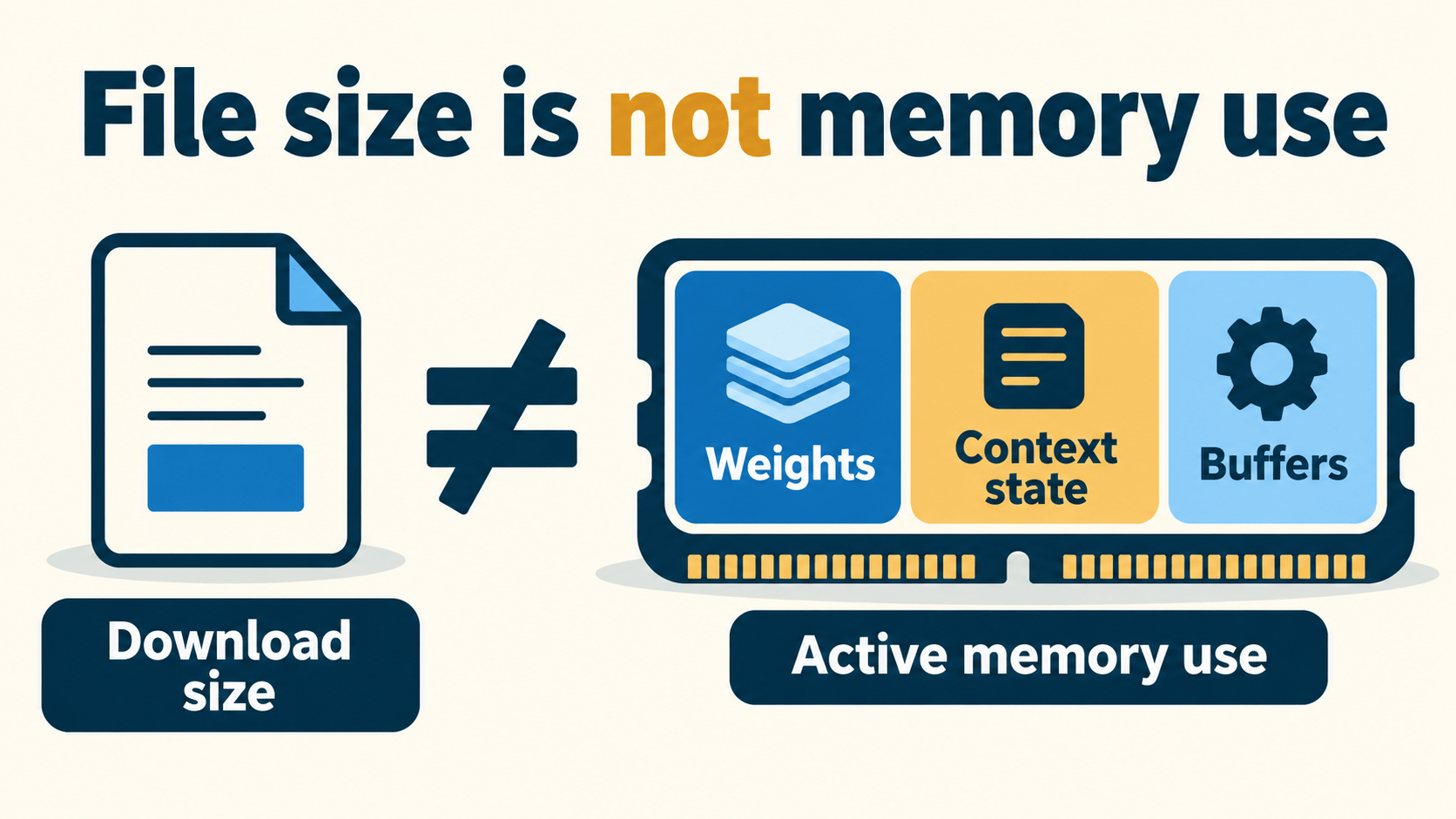
You need compatible software and enough storage and active memory for the chosen model and settings. An application's system requirements are different from a model's memory requirements.
Check the actual operating-system requirements
The current LM Studio system-requirements page distinguishes requirements from recommendations:
| Platform | Documented requirement or support | Documented recommendation or caveat |
|---|---|---|
| macOS | Apple Silicon and macOS 14.0 or newer; Intel Macs unsupported | 16 GB+ RAM recommended; smaller models and modest contexts may work on 8 GB Macs |
| Windows | x64 and supported ARM systems; AVX2 required for x64 | At least 16 GB RAM and 4 GB dedicated VRAM recommended |
| Linux | x64/ARM64 AppImage; Ubuntu 20.04 or newer | The page currently says Ubuntu versions newer than 22 are not well tested |
These are LM Studio's statements, not requirements for all local-model software or guarantees that any model will load. Check the download matching your actual operating system and architecture. For Ollama, follow the platform instructions linked from its quickstart and consult its current hardware-support documentation for your GPU.
Separate three resource questions
- Can I store it? Check the displayed download size and free disk space, including room for the runtime and any additional files.
- Can I load it? Weights, runtime buffers, and other working data consume memory beyond the file on disk.
- Can I use the intended context? Conversation length, output allowance, cache implementation, and concurrent requests can change memory demand.
Dedicated GPU memory and system RAM are not simply interchangeable. Apple Silicon uses a shared memory pool; a separate graphics card has its own VRAM. Partial CPU/GPU placement may work but behave differently from full GPU placement.
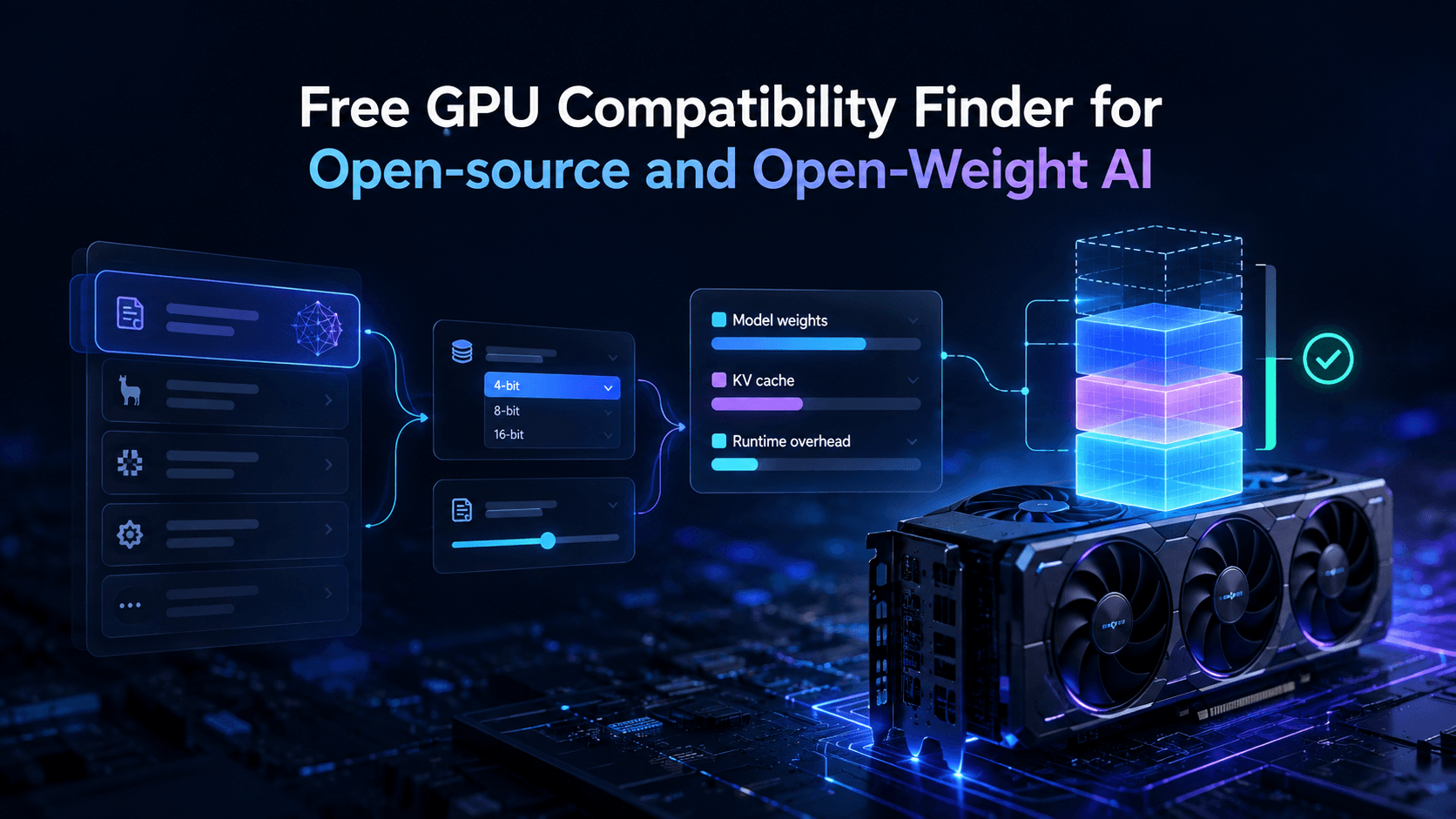
Use Vantaige's AI VRAM Calculator to explore estimates, then confirm behavior on the actual machine. The KV-cache guide explains why context matters. Neither an estimate nor an application fit indicator replaces a real load check.
Fill in the local-model readiness checklist before starting. Leave unknown observations as unknown rather than guessing a memory budget.
Choose a small chat model and inspect its identity
Choose a model intended for conversation or instruction following. A base model's continuation behavior may be a poor match for a first chat. A chat model can still make factual and formatting mistakes.
For the terminal example below, the actual Ollama library tag is qwen3:0.6b. At the source check, its library entry displays a 523 MB Q4_K_M package. That is a modest download example, not a total RAM requirement, speed measurement, newest-model claim, or recommendation for demanding work. Tags and packages can change; inspect the entry you are about to download.
The publisher's Qwen3-0.6B model card describes the original model. A runtime's packaged or quantized variant may carry additional metadata. Record the precise repository/tag and quantization, rather than treating every “Qwen3” download as identical.
Before choosing any model, check:
- The publisher and the provenance of a converted or quantized file.
- Intended use, limitations, and the actual license.
- Supported format/runtime and required template or configuration.
- Context support and the smaller context you intend to start with.
A lower-bit quantization can reduce the weight footprint, but its effect on quality depends on the model and task. Do not assume every 4-bit version preserves the same quality. Vantaige's guide to reading model cards covers the detailed fields without requiring you to learn them all before the first chat.
Run a first chat with Ollama
1. Install and open the runtime
Follow the official platform instructions from the Ollama quickstart. Use the installer or Linux instructions appropriate to your system. Do not start a second server if your app or service is already running one; the quickstart notes that Linux users can start ollama serve when needed.
Ollama's current setup can present a cloud/local choice. A downloaded local model does not require an Ollama cloud API key. Skip cloud-key creation when following this local path.
2. Download and start the documented small example
In your terminal, run:
ollama run qwen3:0.6b
This documented model command can download the package if it is missing, then start a chat. Ensure you have active network access and sufficient disk space before starting.
At the chat prompt, paste:
Read this fictional note:
The demo workshop starts at 10:30. Bring a notebook.

Return only the start time stated in the note.
The acceptance criterion is an answer identifying 10:30, without inventing a different time. Thinking output or extra wording may depend on the model and runtime settings. Inspect the final answer separately from any intermediate material.
Type /bye to leave the chat. Exiting the chat does not necessarily unload the model or stop a background service.
3. Inspect the running model
The Ollama FAQ documents:
ollama ps
Run it in another terminal while the model is loaded. Inspect the actual model identity and the PROCESSOR column. Ollama describes 100% GPU, 100% CPU, and mixed placement values. This is an allocation diagnostic, not proof of answer quality or a promise of a particular token rate. Record your own output; do not compare against invented memory numbers.
If the model does not load, record the error and reduce the scope of the attempt. Check compatibility and free memory before trying a larger model or context.
Run a first chat with LM Studio
The official desktop workflow is download → load → chat. Downloading a file alone does not mean it is ready in active memory.
1. Install and find a model
Install the appropriate package from LM Studio's official site and check the system requirements first. Open Discover, search for a small conversational model, and inspect the repository and available files. A search for Qwen3-0.6B can help locate compatible variants, but verify the publisher/converter, format, license, and file identity before choosing one.
Do not assume an Ollama tag is also the exact identifier used by LM Studio or Hugging Face. Record the model you actually selected. Avoid downloading multiple alternatives until one works.
2. Load it
Open Chat, use the model loader, and select the downloaded model. The getting-started documentation also describes optional load configuration. Begin with a modest context supported by your model and available memory; do not jump to its maximum advertised context.
Loading allocates working memory. If it fails, preserve the actual error and review the settings rather than treating a completed download as evidence of compatibility.
3. Try the same inspectable prompt
Paste the fictional workshop prompt from the Ollama section. Check the final answer against 10:30. Then try a new chat using one of the download's other fixtures.
You do not need to enable a developer server to use desktop chat. Leave server/network configuration for the integration task when you need it. This keeps the first exercise focused on one model, one interface, and one observable result.
Test usefulness with a small fixture
A response proves the path can generate text. A second check asks whether the output meets your task. Use a fixture whose answer you already know:
| Check | Prompt task | Acceptance criterion |
|---|---|---|
| Extraction | Return the workshop's stated start time | Correctly identify 10:30 |
| Formatting | Turn a supplied two-item list into exactly two numbered items | Preserve both items without adding one |
| Missing information | Ask for a price absent from a fictional note | State that the note does not provide a price |
The first-chat prompt sheet contains self-contained prompts and recording fields. All observations start as not_run. These are chosen smoke tests, not a benchmark or proof of production reliability.
If an answer fails, first confirm that you sent the complete fixture and selected the expected model. Try a clearer, shorter task in a new chat. A model that loads successfully but repeatedly fails a required task may be unsuitable for that task; increasing context or changing a sampling setting does not guarantee a fix.
Understand what local and offline mean
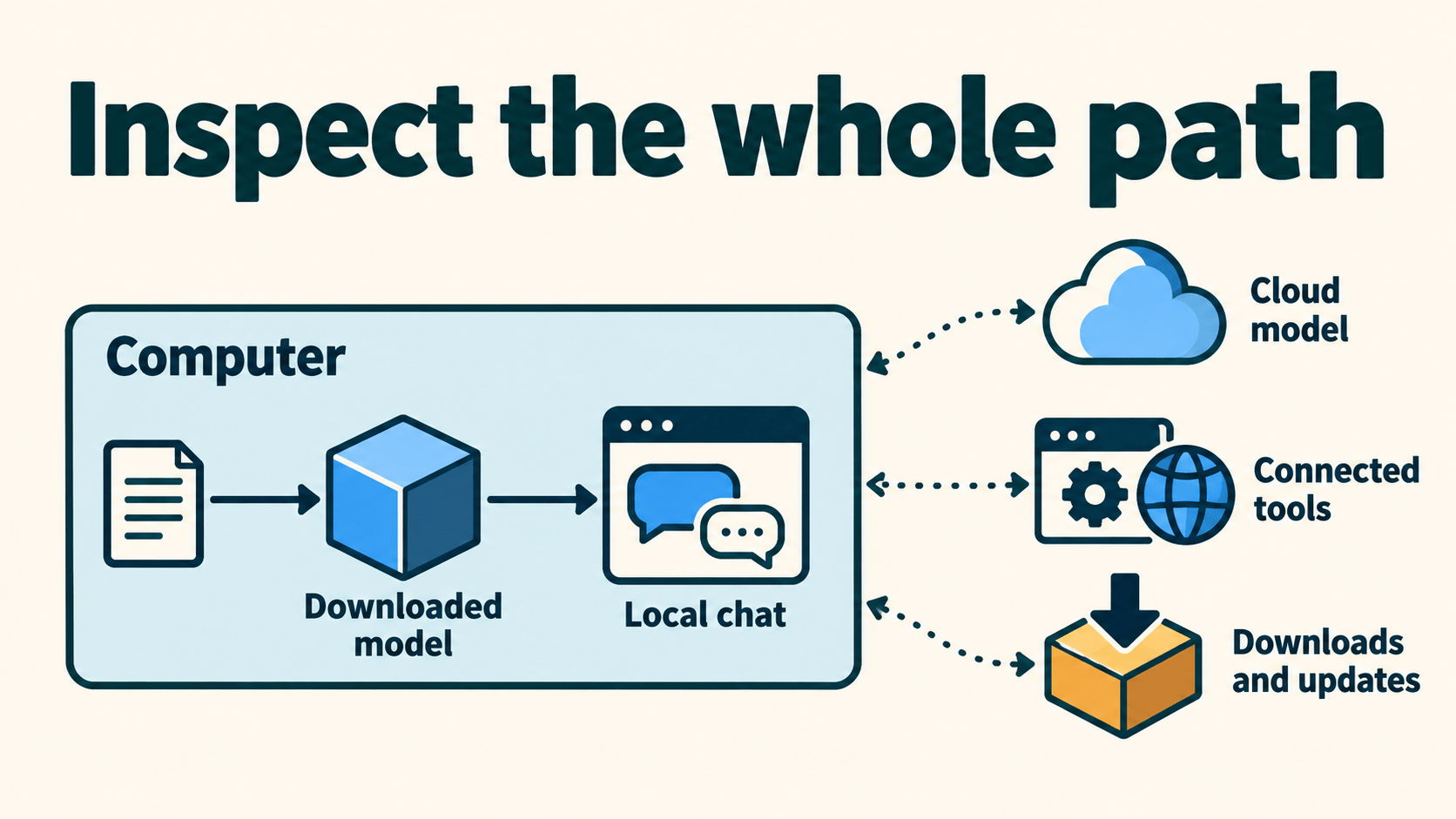
LM Studio's offline documentation states that downloaded local-model chat, local document processing, and local serving can operate without internet access. Model discovery/downloads, runtime downloads, and update checks are separate network activities. Ollama's FAQ likewise distinguishes local inference from cloud services and documents a local-only configuration option.
Keep three boundaries separate:
| Activity | What to establish |
|---|---|
| First setup | Obtain the app, required runtime files, and model files |
| Local inference | Select a downloaded local model and verify the intended runtime path |
| Connected tools | Review any cloud endpoint, search, MCP server, extension, logging, or sync behavior separately |
A model file on disk does not prove the whole toolchain keeps data on the device. An optional offline test after setup can show whether that selected chat works disconnected. It does not establish what happened before disconnection or audit every extension and log.
For private material, inspect the actual configuration and data flows first. Use synthetic text while learning.
Choose the next task
Finish one working chat before adding complexity. For an application, the next task is a loopback API request with correct response handling and access boundaries. For coding, choose a client, a small repository task, and a reviewable diff. For load failures or slow output, keep the model fixed and change one setting at a time.
Download the readiness checklist, record your machine and selected model, and complete the three prompt checks. The existing Ollama and LM Studio profiles provide further product context.
Get the best new AI tools and guides, weekly
One short email a week. The tools worth trying, the guides worth reading, nothing else.
No spam. Unsubscribe anytime.
Aymen B
Contributing writer at Vantaige, covering the AI tools ecosystem.
Similar articles
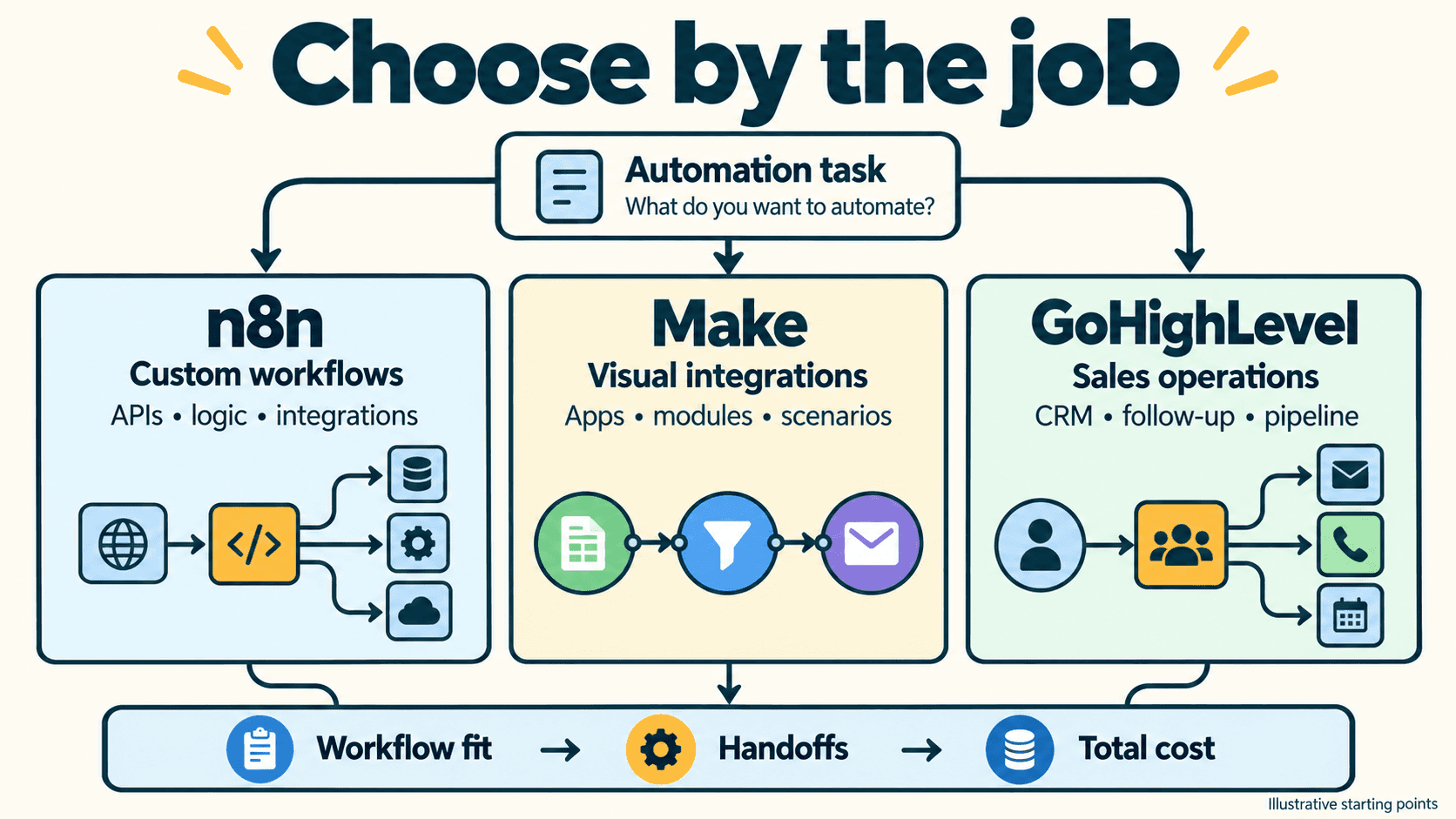
n8n vs Make vs GoHighLevel: Which Fits Your Workflow?
Vantaige Launches the LLM VRAM Calculator: A Free GPU Compatibility Finder for Open-source and Open-Weight AI