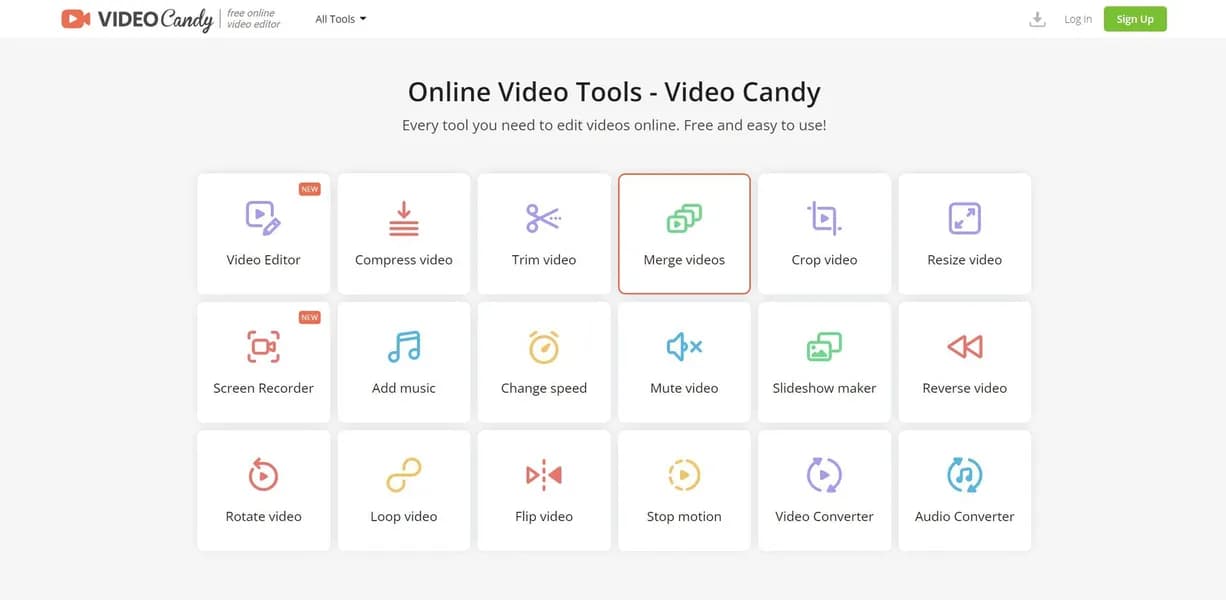

Video Candy is a free browser-based video editing suite by Icecream Apps Ltd. It allows users to trim, compress, and merge files up to 2GB without adding watermarks. While excellent for quick social media edits, it lacks a multi-track timeline for complex layering.
What is Video Candy?
You need to cut a 1.5GB MP4 file for TikTok, but your laptop lacks storage for heavy editing software. Uploading the file to a browser-based editor usually results in a massive watermark or a paywall demanding a monthly subscription. Video Candy solves this exact problem by processing large files directly in your browser and exporting them clean.
Developed by Icecream Apps Ltd, Video Candy functions as a free online video editing suite. It targets casual creators and social media managers who need quick edits without installing desktop applications. The platform handles basic tasks like trimming, merging, and compressing, though it lacks advanced multi-track capabilities.
- Primary Use Case: Trimming and compressing large MP4 files for social media sharing.
- Ideal For: Casual creators and social media managers on a strict budget.
- Pricing: Starts at $0 (Free) – You get full access to all tools without watermarks or hidden fees.
Key Features and How Video Candy Works
File Modification Tools
- Video Trimmer: Cuts MP4, MOV, and AVI files with millisecond accuracy.
- Video Compressor: Offers Low, Medium, and High compression levels to reduce file size for email limits.
- Resize Video: Applies aspect ratio presets for Instagram (1:1), TikTok (9:16), and YouTube (16:9).
Assembly and Conversion
- Merge Video: Combines up to 10 clips into one continuous file using drag-and-drop reordering.
- Video to GIF: Converts video segments up to 10 seconds into animated GIFs.
- Slideshow Maker: Turns up to 50 photos into a video with customizable transition durations.
Audio and Playback Adjustments
- Add Music: Overlays MP3 and WAV audio tracks with independent volume control.
- Video Speed: Adjusts playback speed from 0.25x slow motion to 4x fast motion.
- Mute Video: Removes audio tracks from any uploaded file with one click.
Video Candy Pros and Cons
Pros
- Exports videos completely free of watermarks.
- Requires zero account registration to start editing.
- Supports large file uploads up to 2GB.
- Deletes uploaded files from servers automatically after two hours.
Cons
- Lacks a multi-track timeline for layering multiple videos.
- Omits an ‘Undo’ button within specific tools.
- Limits export options primarily to the MP4 format.
Who Should Use Video Candy?
- Social media managers: Quickly resize and trim clips for TikTok or Instagram without opening heavy software.
- Budget-conscious beginners: Access basic editing tools without paying subscription fees or dealing with watermarks.
- Office workers: Compress large video files to meet strict email attachment size limits.
- Professional video editors (Not Recommended): You will find the lack of a multi-track timeline and limited export formats too restrictive for client work.
Video Candy Pricing and Plans
Video Candy operates entirely on a free model. Users do not need to create an account or provide credit card information. Every tool on the website is available at no cost. The platform supports file uploads up to 2GB. You can process an unlimited number of videos per day. The developers monetize the site through other software offerings rather than restricting this web tool.
How Video Candy Compares to Alternatives
Similar to Clideo, Video Candy offers browser-based editing tools for quick tasks. Clideo provides a more unified editing interface, but it applies a prominent watermark to all free exports. Video Candy exports clean files, making it the better choice for users who refuse to pay for basic trimming and merging.
Unlike Kapwing, this tool avoids complex timeline interfaces. Kapwing functions like a full desktop editor in your browser, offering AI subtitle generation and multi-track audio. Video Candy sticks to single-task tools. If you need to layer text over multiple video clips, Kapwing handles that easily, while Video Candy forces you to process the video through separate tools sequentially.
Final Verdict: The Best Tool for Quick, Single-Task Edits
Video Candy delivers exactly what it promises.
You get free, watermark-free video editing for files up to 2GB. Social media managers and casual users gain the most value here. The two-hour server deletion policy provides peace of mind for sensitive corporate files.
The single-task workflow creates friction.
(I found myself downloading a trimmed video just to re-upload it to the compression tool). If you need to layer audio, text, and video simultaneously, look elsewhere. Kapwing provides the multi-track timeline required for complex projects. If you just need to cut a 1GB file and email it to a colleague, Video Candy is the fastest way to get it done.
User Reviews
No reviews yet. Be the first to share your experience!
Sign in to write a review.
Related articles
Guides and articles related to Video Candy.

The AI Content Automation Stack: 7 Tools That Run a Full Blog Without a Team

The Personal AI Productivity Stack (2026): One Tool Per Job, Nothing Extra

One Product Photo, Full Fashion Campaign: AI Images and Video That Sell (2026)

Wix Logo Maker Review (2026): Real Costs, the Edit Catch, and AI Alternatives

Perplexity AI Tutorial: Maximize Your Research Workflows